How to Fix the Green Screen Issue While Playing Videos?
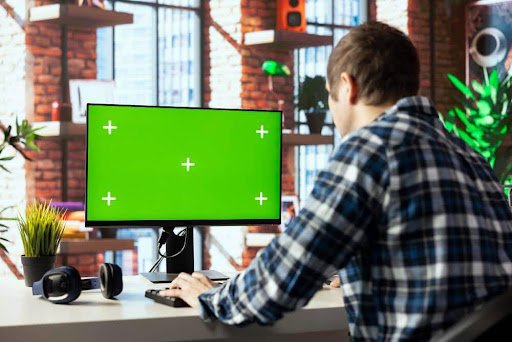
While enjoying any movie, series, or any other video, or while attending an important meeting or class, you do not want disturbances on the screen of your system. But sometimes, our screens face glitches and issues while playing videos. However, there are some reasons for that to occur, and there are solutions to fix them by yourself as well.
To know more about these reasons and methods to fix them, read the article carefully and follow the given steps accurately.
Methods to Fix Green Screen Issues
The primary reason for the issues in playing video on computers or laptops is related to hardware and the graphics drivers present in the computer. But it could be any other reason as well. It is important to understand the root cause of the issue and apply methods to fix it accordingly.
The following are some methods used to fix the green screen issue while playing a video.
Disable Hardware Acceleration
For loading graphic-intensive programs, your computer uses a GPU (Graphics Processing Unit) instead of the CPU. In the process of turning over from the CPU to the GPU for web pages, errors sometimes occur.
To resolve this condition, you have to disable hardware acceleration. This process is different for Google Chrome users, Firefox users, Internet Explorer users, and Safari users. Let’s see one by one how it is done for every user.
- The following are the steps used to disable hardware acceleration for Google Chrome users.
Step 1: Click on the Chrome icon and open it.
Step 2: Open the Chrome ‘Menu’ from the top-right corner.
Step 3: From the list, open ‘Settings,’ and then click on the ‘Advanced’ option.
Step 4: Click and open ‘System’ and turn off ‘Hardware Acceleration when Available.’
Step 5: Restart Chrome and open that video again to check.
- The following are the steps used to disable hardware acceleration for Firefox users.
Step 1: Open Mozilla Firefox and then ‘Menu.’
Step 2: Open ‘Options’ and then go to ‘General.’
Step 3: Search for ‘Performance’ in the list.
Step 4: Unselect the ‘Use Recommended Performance Settings’ and then unselect the ‘Use hardware acceleration’ box.
Step 5: Restart Firefox.
- The following are the steps used to disable hardware acceleration for Internet Explorer users.
Step 1: Open Internet Explorer.
Step 2: Open ‘Computer Settings’ and then go to ‘Internet Options.’
Step 3: Click on the ‘Advanced’ tab.
Step 4: Select the ‘Software rendering instead of GPU rendering box’ in ‘Accelerated Graphics.’
Step 5: Restart your computer, and the issue is resolved.
- The following are the steps used to disable hardware acceleration for Safari users.
Apple has stopped the feature of enabling or disabling hardware acceleration, so you cannot change anything.
Update Your Graphics Card
- Here are the steps to Update Driver Software for your graphics card on a Windows PC.
Step 1: Open ‘My Computer’ and go to ‘Manage.’
Step 2: Select ‘Device Manager’ and open ‘Display Adapter.’
Step 3: You can see your graphics drivers now; right-click on them and then click on ‘Update Driver.’
Step 4: Now search for the updated drivers; your system will automatically find the graphics card and get its latest version of drivers.
Step 5: Restart your system; it will reinstall the drivers automatically.
- Steps to update your graphics card on macOS.
Step 1: Open the Apple Menu.
Step 2: There, you will find a software update; install it, and this will automatically install the latest version of graphics cards on your system.
Run the Troubleshooter.
To fix the green screen issue, try running troubleshooting on your system.
- The following are the steps to run the troubleshooter in your system.
Step 1: Click on the ‘Windows’ option in the leftmost corner of the taskbar.
Step 2: Open ‘Settings’ and search for ‘Update & Security.’
Step 3: Click on ‘Troubleshoot,’ and from the list, find ‘Hardware and Devices.’
Step 4: Select ‘Run the Troubleshooter.’
Step 5: After completing the process, restart your system.
Enable JavaScript in Browser (PC, Mac)
To fix the green screen issue that appears while streaming videos, enable JavaScript in your browser. Activating JavaScript on your PC, Mac, Android, or other system can severely enhance your video viewing experience.
To enable JavaScript in your browser, follow the given steps.
- JavaScript activation for Chrome users.
Step 1: Open Google Chrome.’
Step 2: Write the address ‘chrome://settings/content/javascript’ in the address bar and press ‘Enter.’
Step 3: Then select ‘Sites can use JavaScript’ and close the window.
- JavaScript activation for Safari users.
Step 1: Open Safari, and go to the menu bar.
Step 2: Go to preferences, and select the ‘Security’ tab.
Step 3: Check ‘Enable JavaScript’ to enable JavaScript in your Safari and close the Window.
These are the methods used in fixing the green screen issue in PCs, Macs, Androids, and other systems, with their easy-to-follow steps. Take action as soon as possible to fix the issue and enjoy your experience.